Editor
This section contains user guides for Mermaid Chart’s Editor.
Editor features
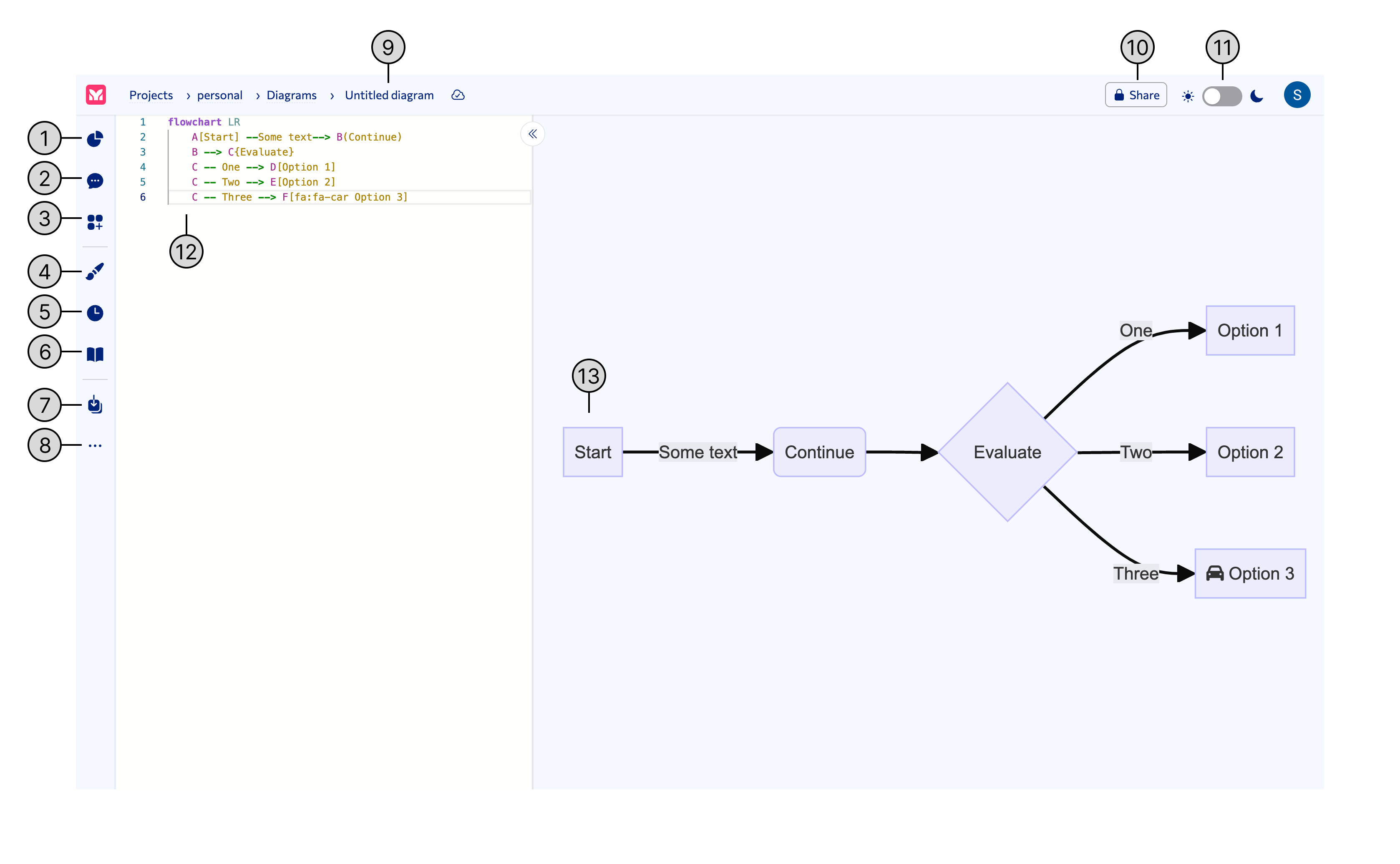
1 - Sample Diagrams, 2 - AI ChatBot, 3 - Code Snippets, 4 - Theme Selector, 5 - Local Timeline, 6 - Diagram Documentation, 7 - Export Diagram, 8 - More Options, 9 - Diagram Title, 10 - Share Diagram, 11 - Light/Dark Mode, 12 - Text Editor, 13 - Rendered Diagram
Sample Diagrams
Select a sample diagram to load it into the editor. Available sample diagrams include: Class Diagram, ER Diagram, Flowchart, Mindmap, Quadrant Chart, Sequence Diagram, State Diagram, Timeline, and User Journey.
AI Chatbot
Input a prompt into the AI Chatbot and refine your request until you receive the diagram you want. The AI Chatbot will generate a diagram based on your prompt.
Code Snippets (Beta)
Code Snippets are pre-written code that you can insert into the editor. Code Snippets are available for the following diagram types: Flowchart and Sequence Diagram.
Theme Selector
The Theme Selector allows you to change the theme of your diagram. Mermaid Chart supports the following themes: Mermaid Chart, Default, Forest, Base, Dark, and Neutral.
Local Timeline
The Local Timeline displays your diagram’s revision history. You can use the Local Timeline to revert to a previous version of your diagram. Edits are saved automatically.
Diagram Documentation
The Diagram Documentation will display documentation for the diagram type you are creating in a new tab.
Export Diagram
Export your diagram as a PNG or SVG file, or export your diagram code as a MMD file.
More Options
The More Options menu contains the following options: Autosync and Pan & Zoom.
- Autosync: Autosync will automatically update your diagram as you type.
- Pan & Zoom: Pan & Zoom will allow you to pan and zoom your diagram.
Diagram Title
To update your diagram’s title, click on the title and enter a new title.
Share Diagram
To share your diagram, click on the Share button. You can set the diagram access, share the Editor link, or share an SVG link
Light/Dark Mode
Toggle the Light/Dark Mode lightswitch to change the Editor theme.
Text Editor
Enter your diagram code into the Text Editor and see the rendered diagram in the Rendered Diagram section.
Rendered Diagram
Your diagram will be rendered based on the code you enter and update with each code change.