Mermaid MCP Server
The Mermaid MCP Server enables AI assistants to create, validate, and render Mermaid diagrams seamlessly, plus full integration with your Mermaid Chart account for advanced diagram management. When you ask your AI assistant to create a flowchart, sequence diagram, or any other Mermaid diagram, this server handles the entire process automatically - from syntax validation to PNG generation, interactive playground links, and direct integration with your Mermaid Chart projects.
The Mermaid MCP Server supports multiple transport modes with token-based authentication, allowing clients to choose how they communicate with the server depending on their environment or network setup.
Available Transport Types:
- HTTP:
https://mcp.mermaid.ai/mcpwith"type": "http" - SSE (Server-Sent Events):
https://mcp.mermaid.ai/ssewith"type": "sse"Authentication: Token-based authentication enables access to Mermaid Chart integration tools through the Authorization header.
Available Tools
Core Validation & Rendering Tools (No Authentication Required)
validate_and_render_mermaid_diagram- Validates Mermaid syntax and renders diagrams as PNG images with Mermaid Chart live linksget_diagram_title- Generates descriptive titles for Mermaid diagramsget_diagram_summary- Creates concise summaries of diagram contentlist_tools- Lists all available MCP tools
Mermaid Chart Integration Tools (Authentication Required)
list_mermaid_chart_projects- List all projects in your Mermaid Chart accountlist_mermaid_chart_diagrams- List diagrams within a specific projectcreate_mermaid_chart_diagram- Create new diagrams in Mermaid Chartget_mermaid_chart_diagram- Retrieve specific diagrams from Mermaid Chartupdate_mermaid_chart_diagram- Update existing diagrams in Mermaid Chart
Setup and Configuration
VS Code (with GitHub Copilot or other MCP extensions)
- HTTP Streamable Mode (For remote servers) :
{
  "servers": {
    "mermaid-mcp": {
      "url": "https://mcp.mermaid.ai/mcp",
      "type": "http"
    }
  }
}- HTTP Mode with Authentication (For Mermaid Chart integration) :
{
  "servers": {
    "mermaid-mcp": {
      "url": "https://mcp.mermaid.ai/mcp",
      "type": "http",
      "headers": {
        "Authorization": "YOUR_MERMAID_CHART_TOKEN_HERE"
      }
    }
  }
}- SSE Mode with Authentication (For real-time connections) :
{
  "servers": {
    "mermaid-mcp": {
      "url": "https://mcp.mermaid.ai/sse",
      "type": "sse",
      "headers": {
        "Authorization": "YOUR_MERMAID_CHART_TOKEN_HERE"
      }
    }
  }
}
Cursor
- HTTP Streamable Mode (For remote servers) :
{
  "mcpServers": {
    "mermaid-mcp": {
      "transport": "http",
      "url": "https://mcp.mermaid.ai/mcp"
    }
  }
}- HTTP Mode with Authentication (For Mermaid Chart integration) :
{
  "mcpServers": {
    "mermaid-mcp": {
      "transport": "http",
      "url": "https://mcp.mermaid.ai/mcp",
      "headers": {
        "Authorization": "YOUR_MERMAID_CHART_TOKEN_HERE"
      }
    }
  }
}- SSE Mode with Authentication (For Mermaid Chart integration) :
{
  "mcpServers": {
    "mermaid-mcp": {
      "transport": "sse",
      "url": "https://mcp.mermaid.ai/sse",
      "headers": {
        "Authorization": "YOUR_MERMAID_CHART_TOKEN_HERE"
      }
    }
  }
}
Antigravity with authentication
Prerequisites: Connecting to our remote MCP server from a antigravity IDE requires the following dependencies:
- Node.js
- mcp-remote
Remote MCP Server (via mcp-remote proxy) :
{
  "mcpServers": {
    "mermaid": {
      "command": "npx",
      "args": [
        "-y",
        "mcp-remote",
        "--header",
        "Authorization:YOUR_MERMAID_CHART_TOKEN_HERE",
        "https://mcp.mermaid.ai/mcp"]
    }
  }
}Note: Antigravity currently requires the
mcp-remoteproxy for connecting to remote MCP servers. Direct remote URL support is not working proper and may be fixed in future versions. Check the Antigravity MCP documentation for the latest configuration options.
Authentication Setup
To use Mermaid Chart integration tools, you need to authenticate with your Mermaid Chart account:
- Get Your Token: Visit your Mermaid Chart account settings and generate an API token
- Add to Configuration: Include the token in the
Authorizationheader as shown in the examples above - Replace Placeholder: Change
YOUR_MERMAID_CHART_TOKEN_HEREwith your actual token
Without Authentication: You can still use core validation and rendering tools - only Mermaid Chart integration features require authentication.
How It Works
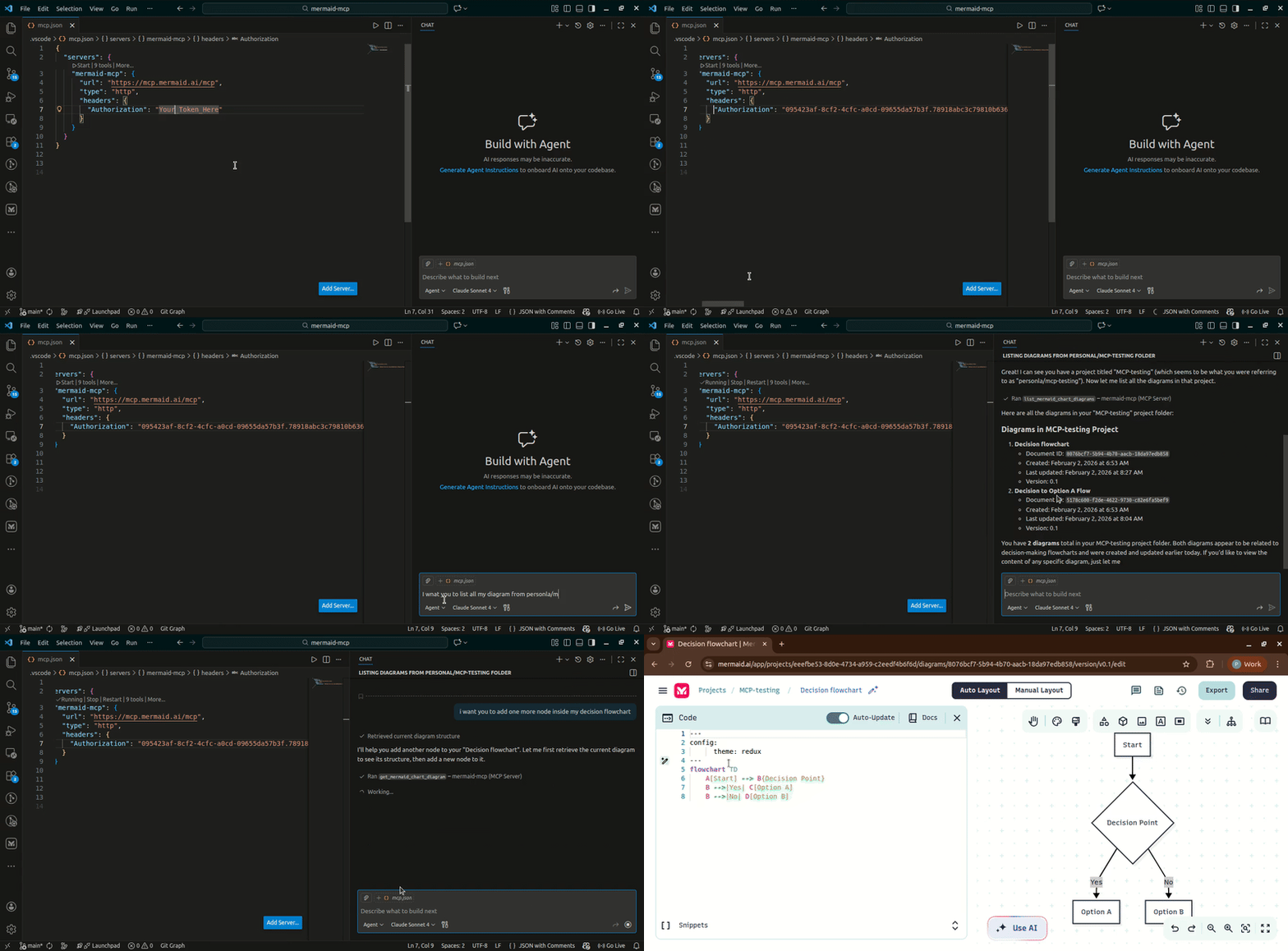
When an AI assistant (like GitHub Copilot or ChatGPT) supports MCP, it will automatically detect your configured server. When you make a request such as “Create a sequence diagram for checkout flow,”
It automatically :
- Generates Mermaid syntax
- Sends it to the Mermaid MCP Server for validation and rendering
- Returns a ready-to-use PNG and SVG and an interactive playground link
- With Authentication: Can also save directly to your Mermaid Chart projects, list your existing diagrams, and manage your diagram library
What You Receive
For every diagram request, you get:
- Rendered PNG Image & SVG image: High-quality diagram ready for presentations or documentation
- Clean Mermaid Code: Properly formatted syntax you can copy and modify
- Interactive Playground Link: Click to edit the diagram in Mermaid Chart’s advanced editor
- Mermaid Chart Integration (with authentication): Direct access to your projects, ability to save, update, and manage diagrams in your account
Troubleshooting and Support
If you encounter issues:
- Check your MCP client’s configuration matches the examples above
- Verify the server URL is accessible (for hosted deployments)
- Authentication Issues: Ensure your Mermaid Chart token is valid and properly formatted in the Authorization header
- Permission Errors: Verify your token has the necessary permissions for the operations you’re trying to perform
- Restart your AI assistant/IDE after configuration changes
- Consult your MCP client’s documentation for additional setup steps
- Report issues or request help at contact us
Ready to level up your workflow? Connect the Mermaid MCP Server to your AI assistant and start generating professional diagrams instantly, with full integration to your Mermaid Chart account for advanced diagram management.