Teams feature
This page contains information about Mermaid Chart’s Teams feature.
Create an organization
In order to use the teams feature, where users can work on diagrams together, first an organization needs to be created. By default any Pro user can create an organization, but we suggest that an initial “admin” user logs in to create the organization, and any teams, first, then invites other members.
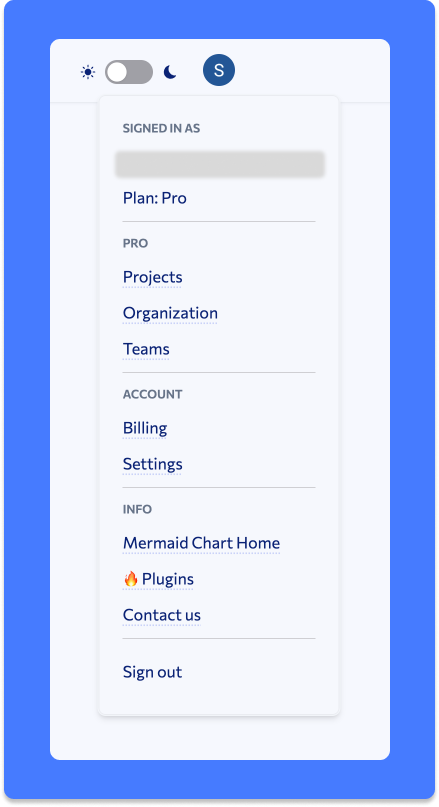
a. Once logged in, click on the user avatar in the top right corner, and select “Organization”.
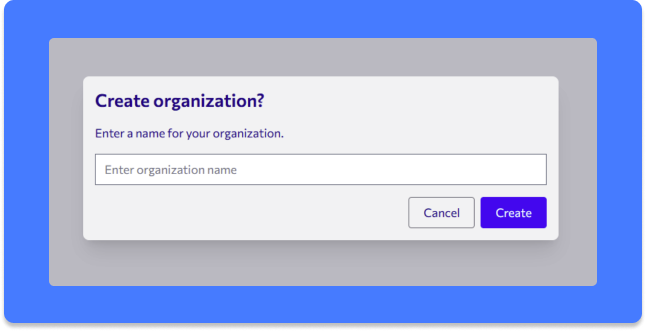
b. On the Organization screen, a modal dialog will pop up automatically to create the org. Provide a name and click “Create”.
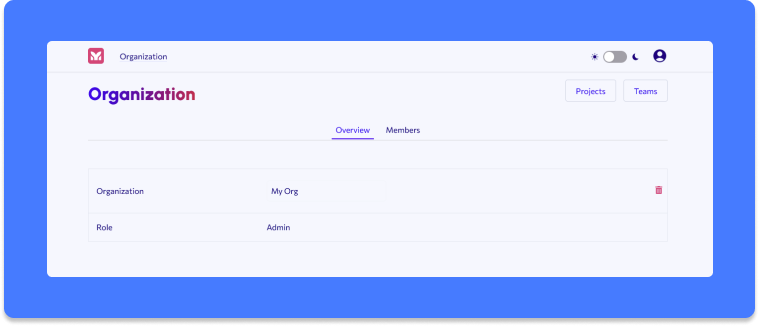
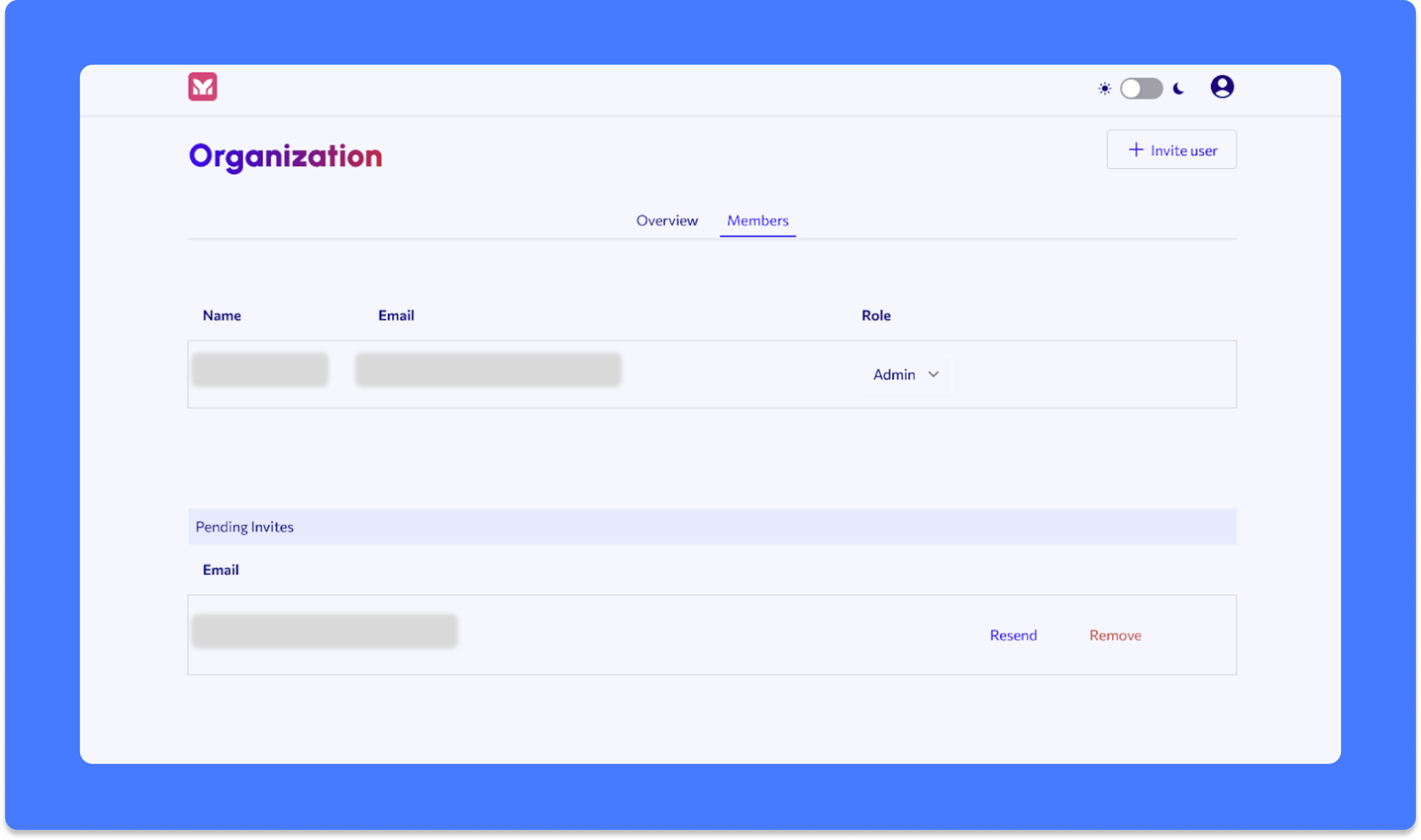
c. In order to add members to the org, click on the “Members” link above the organization details.
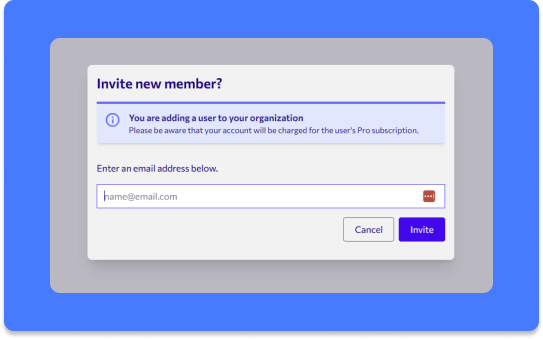
d. Click on “Invite user” button, and enter the appropriate email address.
e. Once the invite has been sent successfully, this page will show a list of all active members, as well as those that have been invited, but have not yet accepted.
Create a team
At least one team will need to be set up to allow users to create projects/diagrams that can be shared among members. Only members of a specific team will be able to view the projects/diagrams created for that team.
a. Click on the user avatar and select the link for “Teams”.
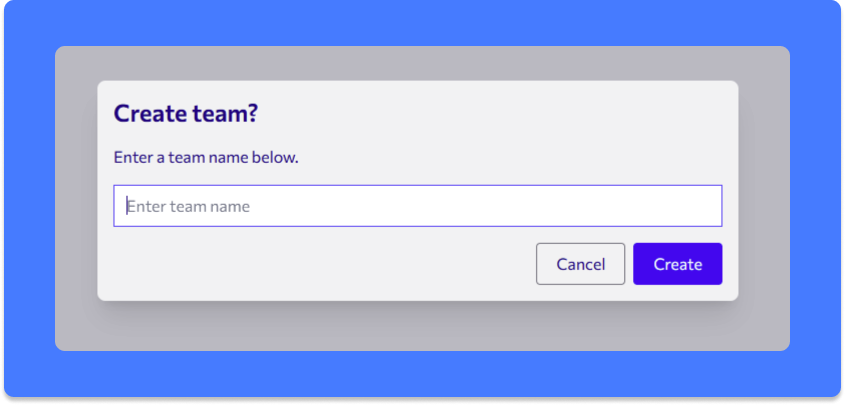
b. Click on the New team button and provide the team name in the pop up modal dialog.
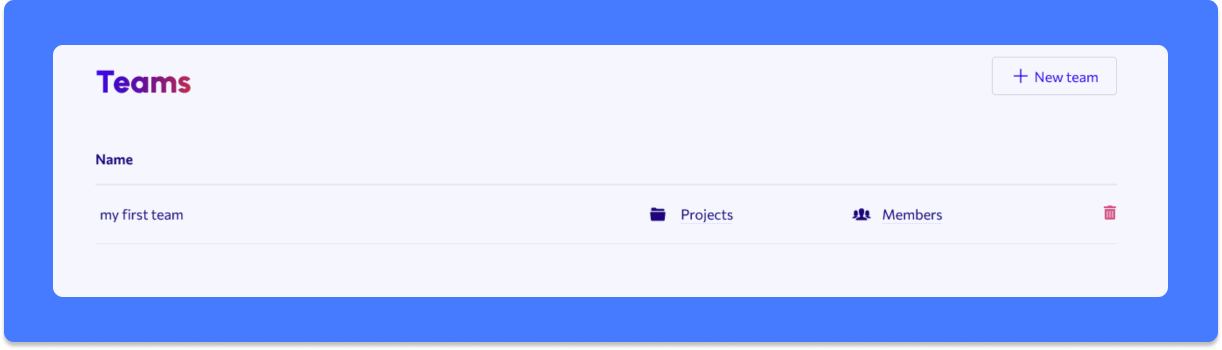
This page will list all of the teams, from which you can view the project and related diagrams, as well as manage the members of each team.
c. To manage members, click on the members icon.
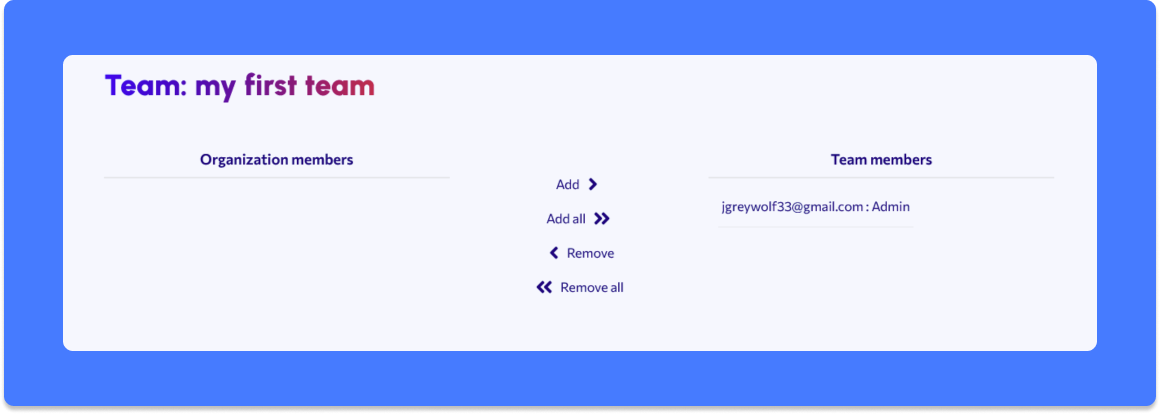
d. This page will show a list of organization users that are not a member of this team, as well as the list of current team members. Add or remove as needed.
e. Once the team and members have been set up, any team member can create projects and diagrams by going back to the teams list and clicking on the link to “Projects”.